
How to Use the Submission Preview Field
April 24, 2026
Formpify Academy
Submission Preview
Allow your users to review their entered data before final submission to reduce errors.
The Submission Preview field is a Pro feature that allows your users to review all their entered information in a neat summary before finalizing their submission. This significantly reduces errors and increases data accuracy.
How to Use
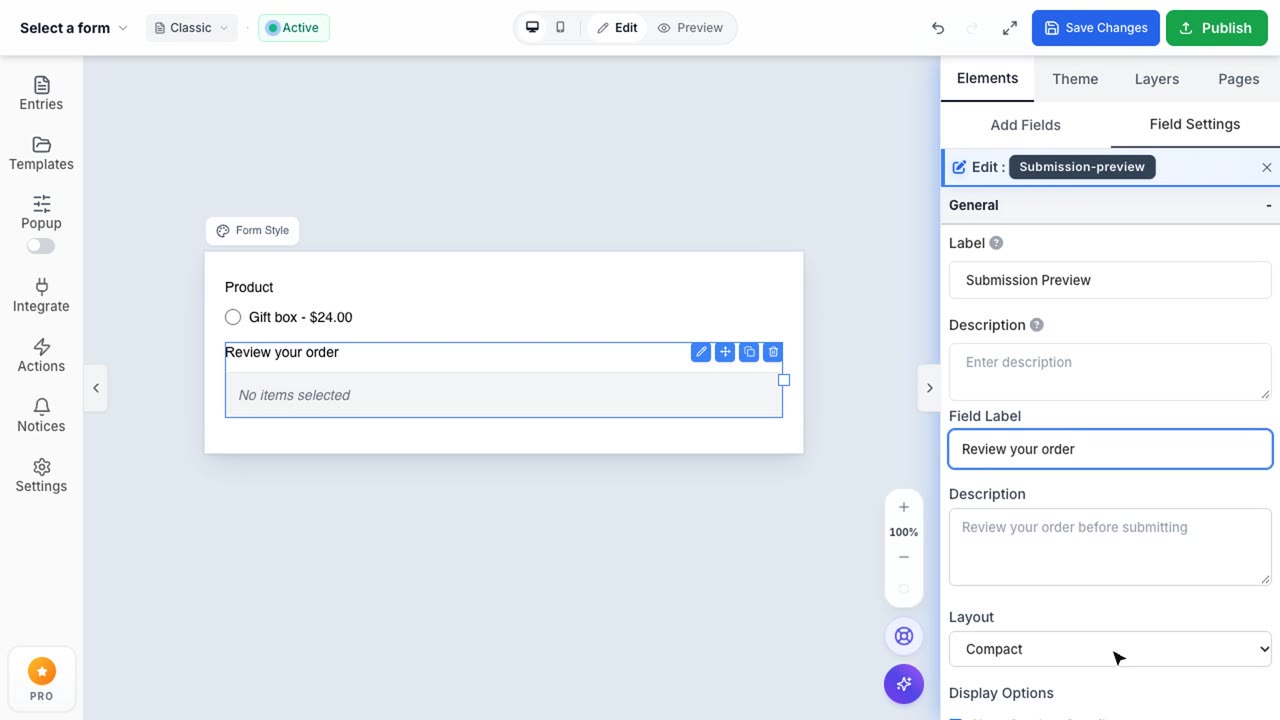
The Submission Preview field acts as a dynamic summary table. Follow these steps to implement it:
- Placement: Drag the "Submission Preview" field from the Advanced Fields section and drop it onto your form. It is highly recommended to place this field at the very end of your form or on the final page of a multi-page form, just before the Submit button.
- Automatic Summary: The field automatically detects all standard and advanced input fields on the form and compiles them into a clean review table.
Advanced Display Options
You can customize how the preview table handles empty data.
- Show Empty Fields: By default, the preview table will hide fields that the user left blank. You can toggle "Show Empty Fields" in the Advanced settings tab if you want the user to explicitly see what they skipped (useful for optional questions).
Note: Password fields, Hidden fields, and CAPTCHA are automatically excluded from the Submission Preview for security reasons.