
How to Add Products to Shopify Cart on Form Submission
September 13, 2026
Formpify Academy
Add to Shopify Cart
Send form submissions straight to the Shopify cart with every answer attached.
The Add to Shopify Cart action transforms any Formpify form into a high-converting direct checkout engine. Instead of sending custom inquiries to an email inbox, your forms can add configured items directly to the Shopify Cart via Ajax (POST /cart/add.js), attaching every customer response as a native Line Item Property visible on Shopify Admin Orders.
Key Benefits
- Instant Checkout Velocity: Eliminate the 24-48 hour email quote turnaround. Shoppers configure their bespoke options and immediately proceed to checkout.
- Seamless Drawer Integration: Dispatches native theme events (
cart:updated,cart:refresh) to automatically slide out your theme's native Cart Drawer (e.g., Dawn, Horizon, Impulse, Prestige). - Line Item Properties: Custom engravings, selected finishes, uploaded logos, and quantities persist directly into Shopify Orders for effortless fulfillment.
Step 1: Accessing Submit Actions
- Open the Formpify Builder for your target form.
- On the left vertical toolbar, click the Submit Actions icon (the lightning bolt).
- Click the Add Action button at the top of the drawer.
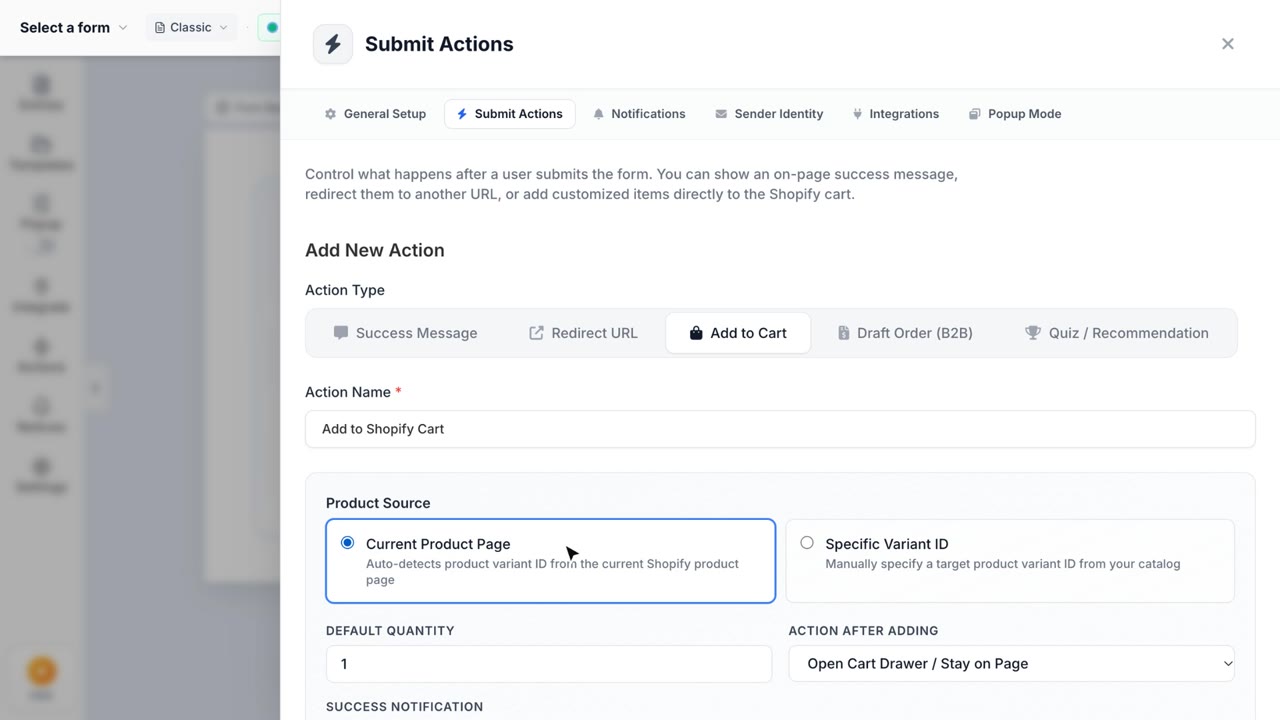
- In the Action Type dropdown, select Add to Shopify Cart.
Step 2: Configuring Product & Variant Selection
Formpify provides two flexible options for targeting products:
- Current Product (Auto-detect): When embedding the form on a Shopify Product Details Page (PDP), Formpify automatically resolves the active product ID and selected variant ID from the page context.
- Specific Product Variant ID: Enter a specific numeric Shopify Variant ID (e.g.
45303733289139). This is ideal for dedicated customizer landing pages or bundled accessory forms.
Step 3: Setting Quantity & Success Behaviors
- Quantity Source: Choose a fixed quantity (default:
1) or dynamically bind to any Numeric Input field on your form. - Success Toast: Customize the toast message that appears upon submission (e.g., "Added to Cart successfully!").
- Post-Action Routing: Choose between:
- Stay on Page: Displays the success toast and triggers the theme's native Cart Drawer.
- Redirect to Cart: Directs the buyer immediately to
/cart. - Direct Checkout: Directs the buyer immediately to
/checkoutfor instant payment.
Viewing Line Item Properties in Shopify Admin
When an order is placed, go to Shopify Admin > Orders > [Order #]. Every visible form field response (text, color swatch name, selected image card, file attachment URL) appears under the line item details, ready for your production team.