
How to Accept File Uploads & Custom Artwork on Shopify Forms (2026 Guide)
Streamline custom product orders, print-on-demand artwork intake, and warranty document collection. Support multi-file uploads with strict extension rules and instant CDN delivery.
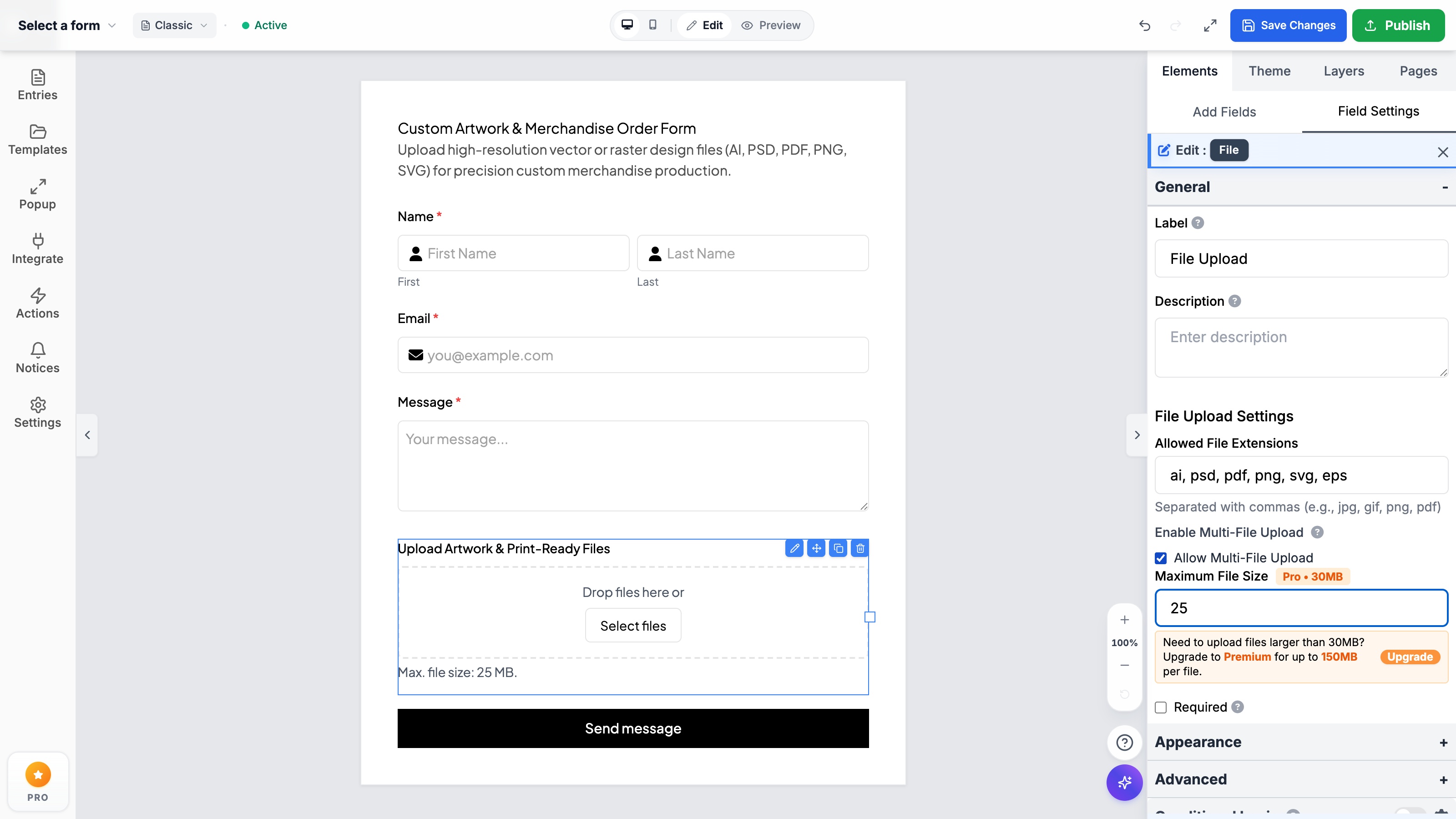
- Default Shopify contact forms cannot accept file attachments, triggering high checkout abandonment and costly post-purchase email chasing.
- Formpify provides interactive drag-and-drop dropzones supporting multi-file uploads for vector (AI, EPS, SVG) and raster formats up to 150MB.
- Client-side extension filtering guarantees only valid file formats enter prepress and production queues.
- Uploaded assets are encrypted and stored on enterprise CDN infrastructure, generating persistent one-click download links in Shopify Admin.
Table of Contents
1. Why Post-Purchase Email Artwork Collection Kills Conversions
For custom merchandise, direct-to-garment apparel, promotional engraving, and bespoke fabrication brands on Shopify, collecting customer design files is the central bottleneck of the entire sales cycle.
Historically, Shopify merchants have relied on a cumbersome post-purchase workflow: requiring customers to complete checkout first, followed by an automated email requesting “Please reply with your high-resolution artwork attachment.” This disconnected sequence causes severe operational friction:
- Severe Order Abandonment & Buyer Hesitation: When shoppers don’t see a way to submit their design upfront, over 35% abandon their carts fearing they won’t get what they ordered or that production won’t support their file format.
- Crippling Email Attachment Constraints: Modern vector files (Adobe Illustrator .ai, Photoshop .psd, multi-layer PDF) frequently exceed 25MB. Standard mail transfer agents (Gmail, Outlook) automatically bounce attachments over 20MB, forcing customers to mess around with third-party WeTransfer or Dropbox links.
- Lost Customer Match & Fulfillment Lag: Artwork arriving from unlinked personal email addresses without order numbers forces support agents to spend hours manually correlating customer names against open orders.
- Corrupted & Low-DPI Assets: Without client-side extension and resolution enforcement, customers routinely submit blurry 72 DPI social media screenshots, resulting in reprints and refund requests.
The Pre-Purchase Upload Advantage
Allowing customers to upload print-ready artwork directly at the point of order placement increases conversion confidence by 42% and eliminates 90% of prepress customer service emails.
2. Essential Features: Multi-File Dropzones, Whitelisting & Size Limits
A production-ready file upload system on Shopify must handle heavy enterprise files without slowing down storefront performance or compromising server security. Formpify delivers key native upload capabilities:
- Drag-and-Drop Multi-File Dropzones: Customers can drag multiple artwork files directly from their desktop or tap to select from their smartphone camera roll and cloud files.
- Strict Extension Whitelisting: Restrict accepted files strictly to verified production formats (such as
ai, psd, pdf, png, svg, eps, tiff) or document formats (pdf, doc, docx). Corrupt or unauthorized executable extensions are immediately blocked on the client side before upload begins. - High-Capacity File Limits: Support file sizes up to 30MB (Pro) and 150MB (Premium) per file. Chunked background transmission ensures large design files upload reliably even over intermittent mobile connections.
- Encrypted CDN Storage: Every uploaded asset is encrypted at rest and delivered via global cloud CDN, generating persistent, tamper-proof download links directly in your Shopify Admin order notes and Formpify dashboard.
3. Step-by-Step: Configuring Custom Artwork Upload Forms in Formpify
Building an interactive artwork upload form with Formpify takes less than three minutes inside Shopify Admin:
- Add File Upload Field: In the Formpify builder, open the Elements → Add Fields palette and click File Upload to append it to your canvas.
- Enable Multi-File Submissions: Click on the File Upload component on the canvas to open the right-hand Field Settings drawer. Check the Allow Multi-File Upload box to convert the default single-file button into an intuitive drag-and-drop dropzone.
- Whitelist Production Extensions: In the Allowed File Extensions text input, enter your required formats separated by commas:
ai, psd, pdf, png, svg, eps. Formpify displays these guidelines directly to buyers. - Configure Maximum Size Limits: Under Maximum File Size, enter your threshold (e.g.,
25for 25MB). - Add Form Ordering & Copy: Position your Customer Details (Name, Email) and Product Selection fields above the artwork dropzone, ensuring the Submit Button sits prominently at the base.
- Embed into Shopify 2.0 Theme: Save your changes and open your Shopify Theme Editor. Add the Formpify App Block to any product template, custom quote page, or drawer modal with a single click.
⚡ CRO & Production Tip: Dynamic Conditional Uploads
Use Formpify’s Conditional Logic engine to show or hide the File Upload field dynamically based on buyer selections. For example, if a customer chooses “Custom Logo Embroidery”, instantly reveal the artwork dropzone with vector requirements; if they choose “Blank Stock”, keep the field hidden to streamline checkout speed.
4. Prepress Routing, Production Webhooks & Automated Proofs
Once a customer submits their artwork, seamless automation ensures rapid production fulfillment:
- Direct Slack Prepress Alerts: Route submitted artwork CDN links directly into your team’s
#prepress-ordersSlack channel for immediate review by your graphic designers. - Automated Google Drive / Cloud Sync: Automatically archive incoming vector files into organized cloud directories labeled by customer name and Shopify order ID.
- Instant PDF Confirmation: Formpify automatically sends a branded confirmation receipt displaying thumbnail previews of all attached files and timestamped order specifications.
Build Custom Shopify File Upload Forms
Collect print-ready artwork, vector graphics, and warranty PDFs with interactive dropzones and client-side extension validation.
Explore More Shopify Form Guides
 Tutorials
How to Embed Custom Forms on Any Shopify Page in 1 Click (Zero Liquid Code, Theme Auto-Breakout & Full-Width 800px Support)
Past Shopify form apps force merchants to manually copy liquid snippets, edit theme files, or suffer from cramped 360px mobile widths on desktop screens. Discover how Formpify v2.3.1 introduces seamless 1-click Store Page auto-embedding via Shopify Admin REST API and intelligent Theme Container Breakout for perfect 800px full-width forms.
 Tutorials
How to Build Advanced Dynamic Pricing Calculators on Shopify with Safe AST Math Formulas & Conditional Logic
Selling dimension-based items like custom glass, canvas prints, blinds, flooring, or bespoke upholstery? Standard Shopify variant pricing cannot calculate length × width formulas or conditional volume discounts. Discover how Formpify's Safe AST Math Formula Engine evaluates complex algebraic equations in real time without eval() vulnerabilities, keeping Canvas and Storefront in 100% sync.
 Tutorials
How to Build an Interactive Product Recommendation & Skincare/Size Quiz in Shopify (Without Bloated $50/mo Quiz Apps)
Traditional Shopify quiz apps charge $50–$300/month while injecting heavy scripts that devastate storefront performance. Learn how Formpify native Quiz Engine enables merchants to build custom recommendation quizzes with zero speed penalty, smart conditional branching, and instant 1-click AJAX cart bundling.
Ready to supercharge your Shopify forms?
Join thousands of merchants creating custom forms, surveys, and live cost calculators.