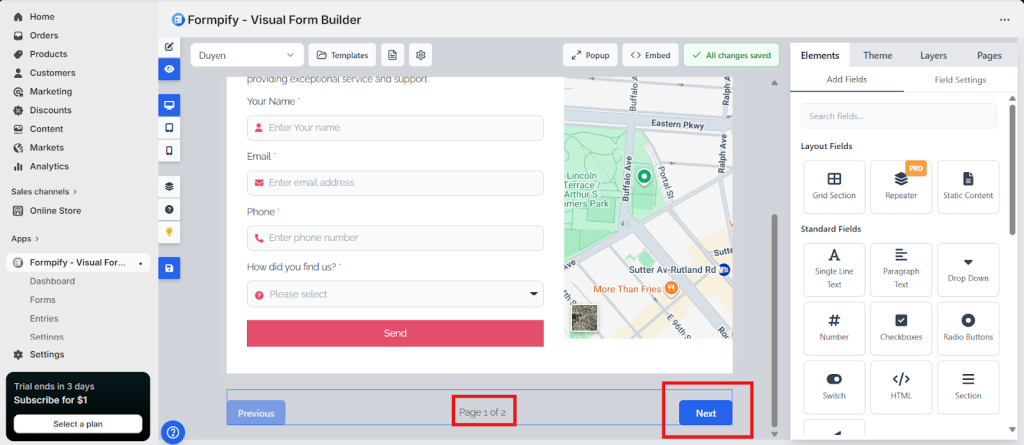
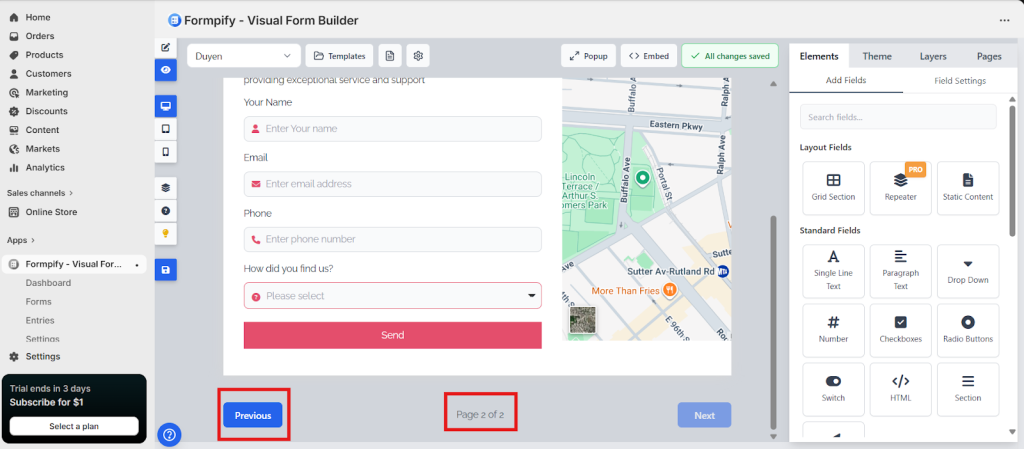
How to Use Pages
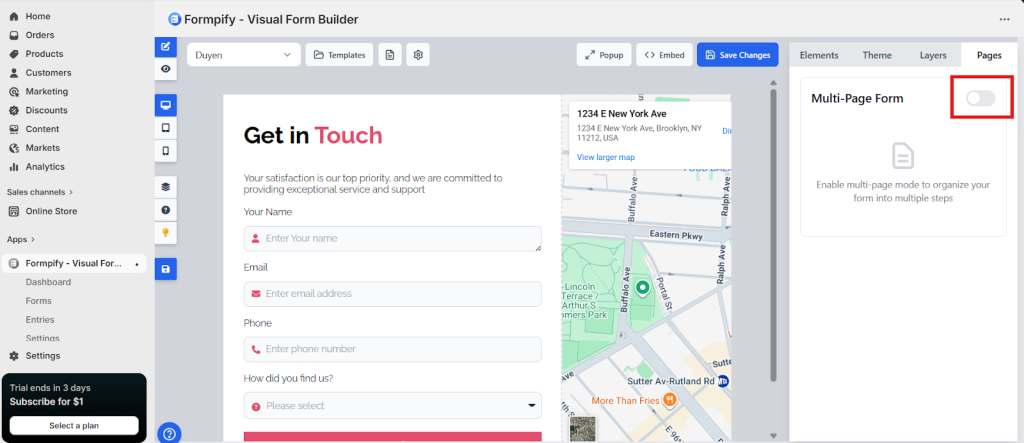
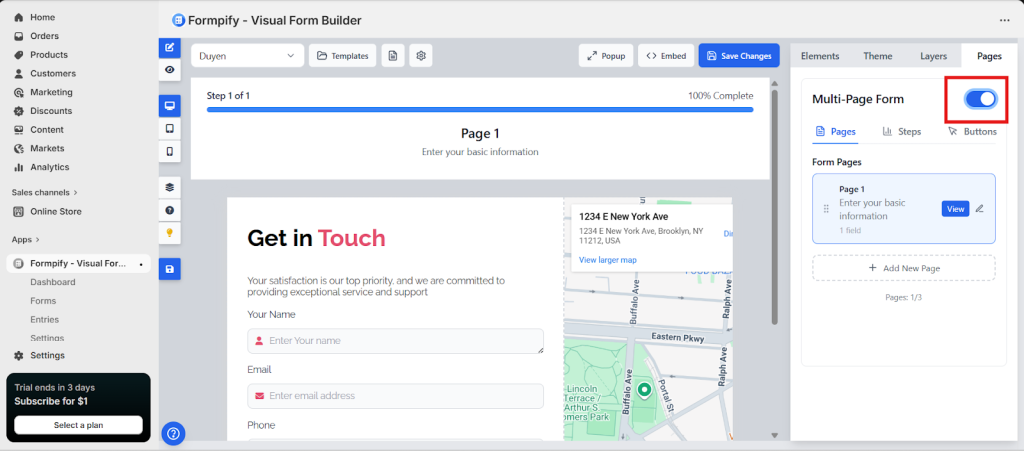
Step 1 — Enable Multi-Page Mode
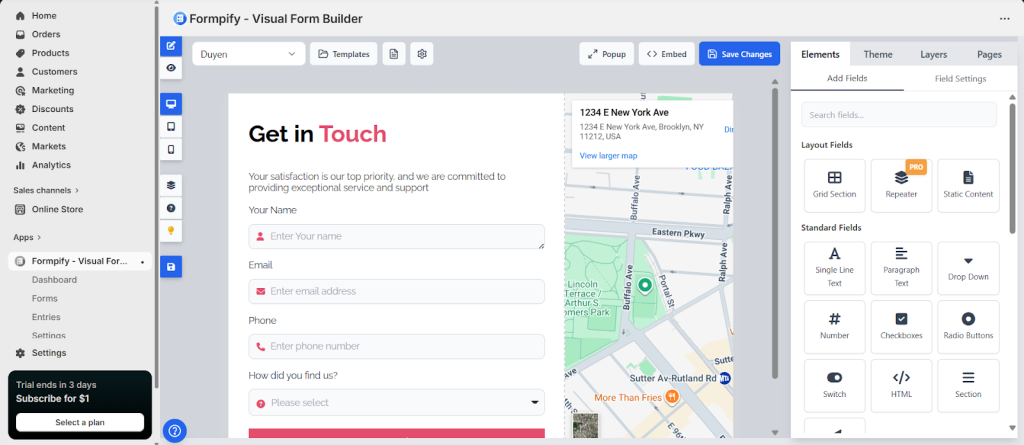
Open your form in the builder.
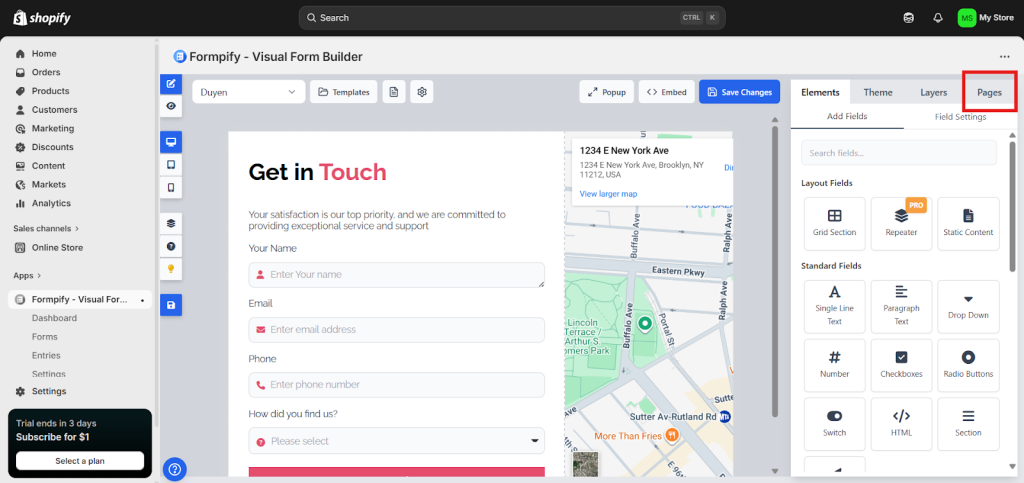
Go to the right panel → Pages tab.
Toggle Multi-Page Form ON.
Step 2 — Add a New Page
In the Form Pages section ==> Click + Add New Page
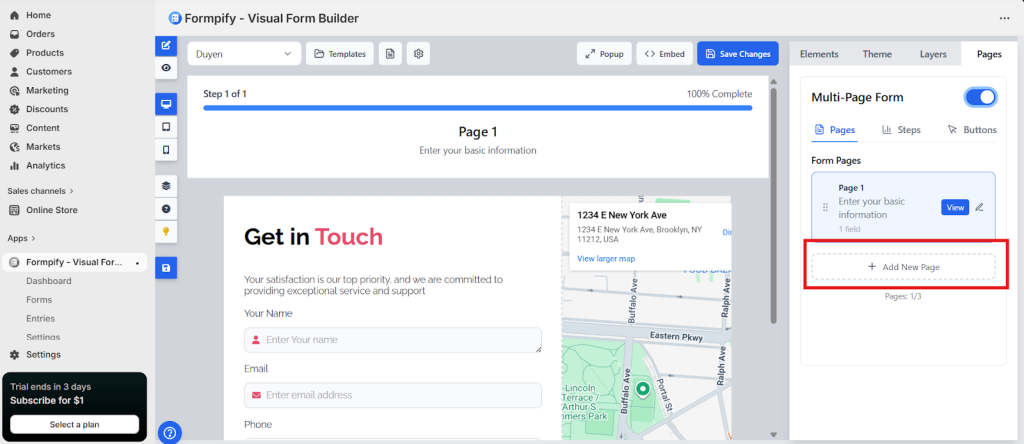
A new page block will appear in the list.
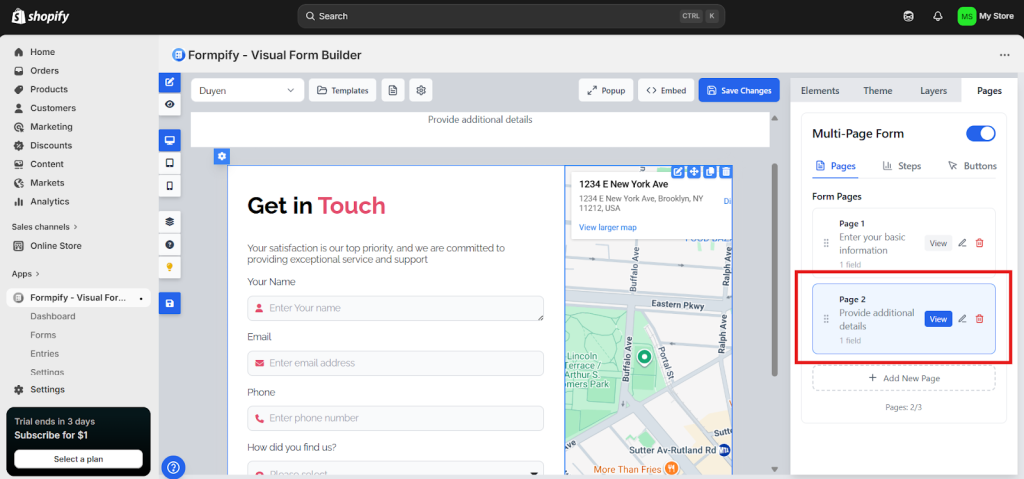
Step 3 — Rename Pages
Click the page title .
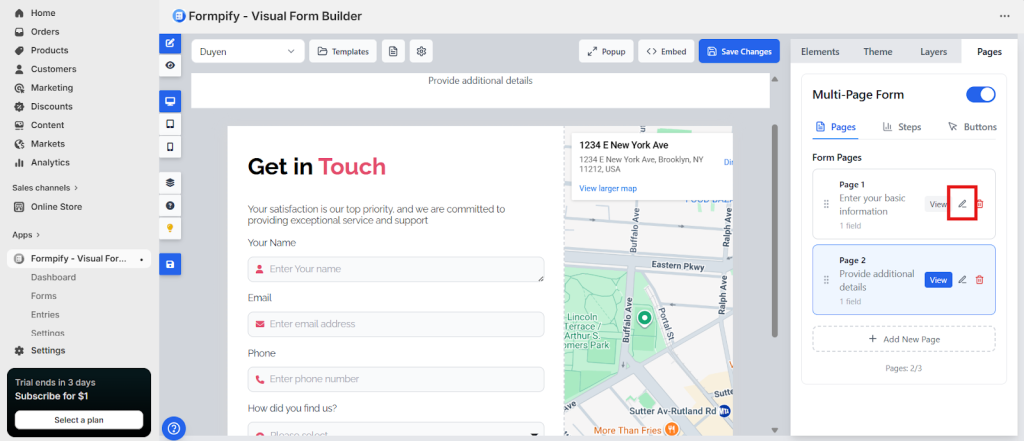
Enter a custom name such as:
+ Contact Info
+ Survey Questions
+ Confirmation
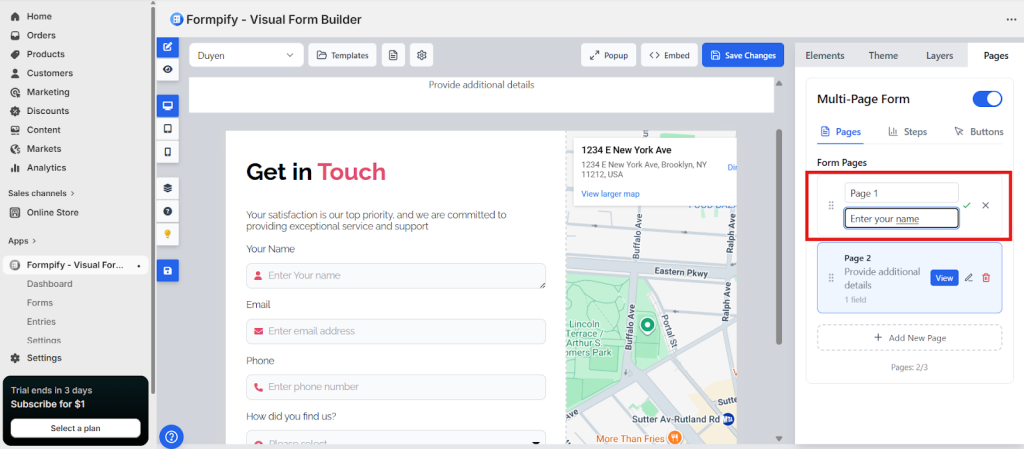
Step 4 — Assign Fields to Pages
Fields belong to the page where they are placed.
To move a field:
Drag the field into the section of the desired page
Or open the page using View and add fields there
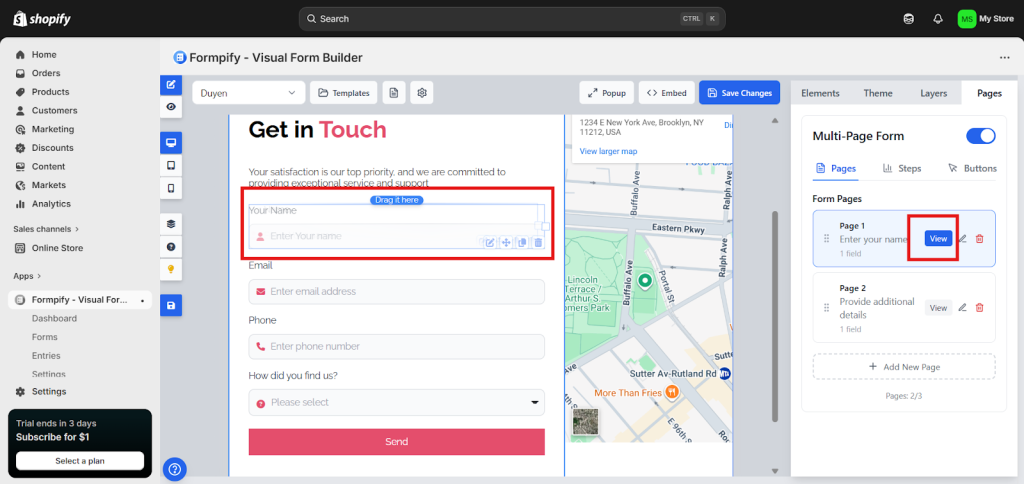
Step 5 — Reorder Pages
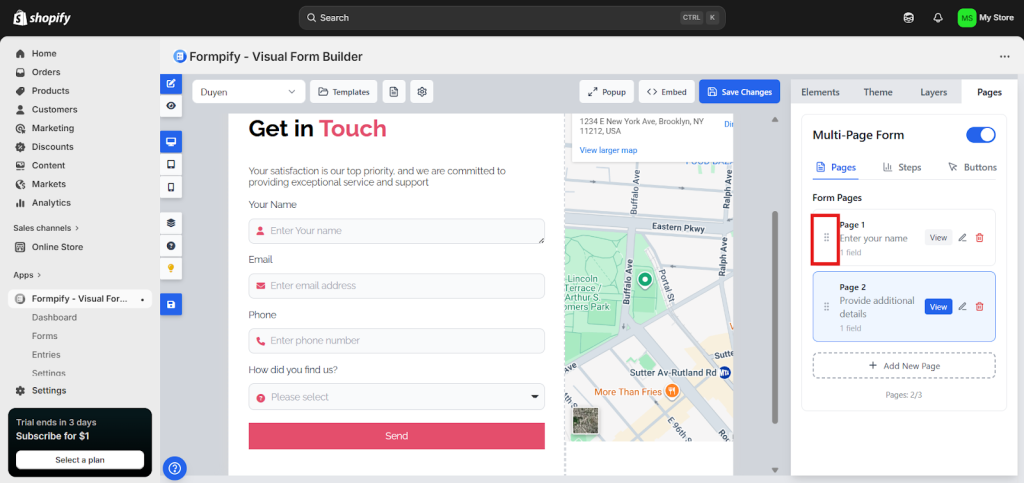
Drag the six-dot icon beside a page to change its order.
This determines the navigation flow users follow.
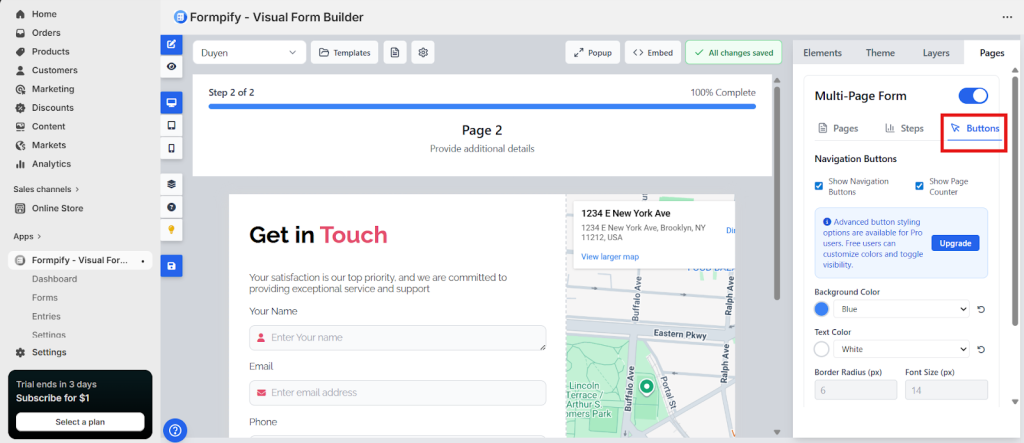
Step 6 — Customize Navigation Buttons
Go to:
Pages → Buttons
You can edit:
Next button text
Previous button text
- Page transitions
- Next / Previous buttons
Submit button text
Step 7 — Preview the Form
Click Preview to test:
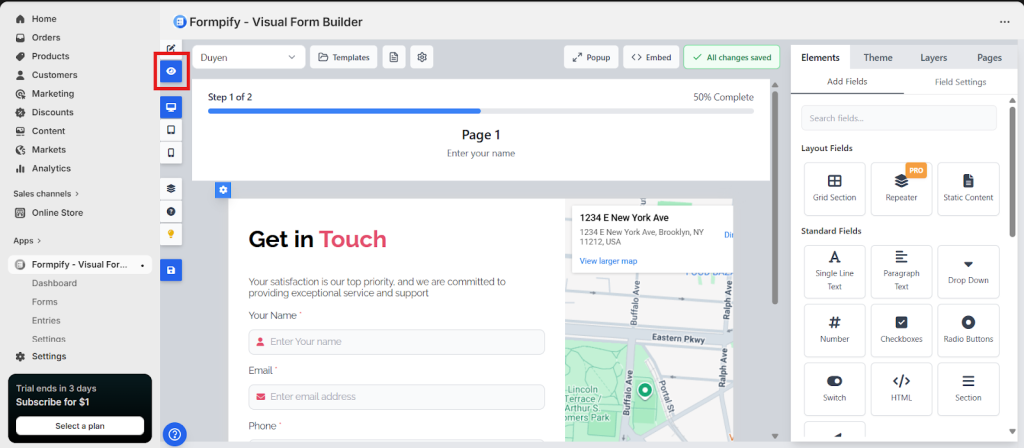
Page transitions
Next / Previous buttons